Purview DLP Incident Management (IM) – From Alert to Outcome #04
Phase 2 – Building the DLP Operating Model
RBAC for Purview DLP Incident Management.
Overview
The DLP Response Pyramid defines who owns each layer of the incident lifecycle. But a layered model without a matching access model is just an org chart. This post covers how to configure Role Based Access Control (RBAC) across Microsoft Defender XDR and Microsoft Purview to make that model operational, and why the dual-portal nature of DLP permissions is exactly where most deployments fall short.
Quick recap
In the previous post, I introduced the DLP Response Pyramid, a layered operating model for DLP incident handling:
Triage → Investigation → Containment → Governance
Each layer has a distinct scope and a distinct definition of “done.” The model only works if the access configuration matches the responsibilities of each layer. Tier 1 analysts who can view full sensitive content make decisions they shouldn’t be making. Tier 2 investigators who can’t access content can’t do their job. Tier 3 responders who lack action rights become a bottleneck before every containment decision.
Getting RBAC right isn’t just a configuration detail, it’s what makes the operating model functional.
A note on the tier model
The three-tier structure used here – Triage, Investigation, Containment – is my suggested pattern, not a prescription. Organizations with smaller security teams or flatter structures may combine tiers based on capacity. Level 1 and Level 2 are frequently merged into a single analyst role. In some environments, Level 2 and Level 3 are the same person. That’s a perfectly valid operating model as the underlying permission logic still applies, it just maps to fewer distinct identities.
The goal of the tier model is to define what access each function needs, not to dictate headcount or org structure. Use it as a reference and adapt it to what your organization can actually sustain.
Why DLP RBAC spans two portals
This is the part that catches most deployments off-guard. DLP incident management permissions in the Microsoft ecosystem don’t live in a single admin portal. Incident and alert handling happens in Microsoft Defender XDR, which uses its own Unified RBAC (URBAC) model. Content visibility, data classification access, and compliance-oriented roles are managed in Microsoft Purview.
To configure a functional, least-privilege DLP operations model, you need to work in both portals, and the permissions granted in each need to be deliberately aligned. An analyst configured correctly in Purview but not in Defender XDR can’t access the incident queue. An analyst configured in Defender XDR but not in Purview can see incidents but can’t view the evidence content.
Neither is useful on its own.
The two failure modes
Before getting into the specifics, it’s worth naming how this typically goes wrong.
The first is over-permissioning. Everyone who touches DLP incidents gets broad access because it’s simpler to configure and nobody pushed back during rollout. Tier 1 analysts can view full sensitive content. Multiple people have response and action rights across both portals with no separation. The result is a least-privilege violation that, in regulated environments, creates real compliance exposure.
The second is under-permissioning. Access is locked down, but without a clear map of what each function actually needs across both portals. Tier 2 investigators can see incidents in Defender XDR but can’t view evidence content because the Purview content viewer role was never assigned. Tier 3 responders can investigate but can’t take containment actions because the Response permission wasn’t included in the URBAC custom role. Both groups escalate to a security administrator who has full access, and that person becomes the permanent bottleneck for every non-trivial incident.
Both failure modes produce the same operational outcome. That is incidents don’t close on time and the operating model stops working.
Role configuration by tier
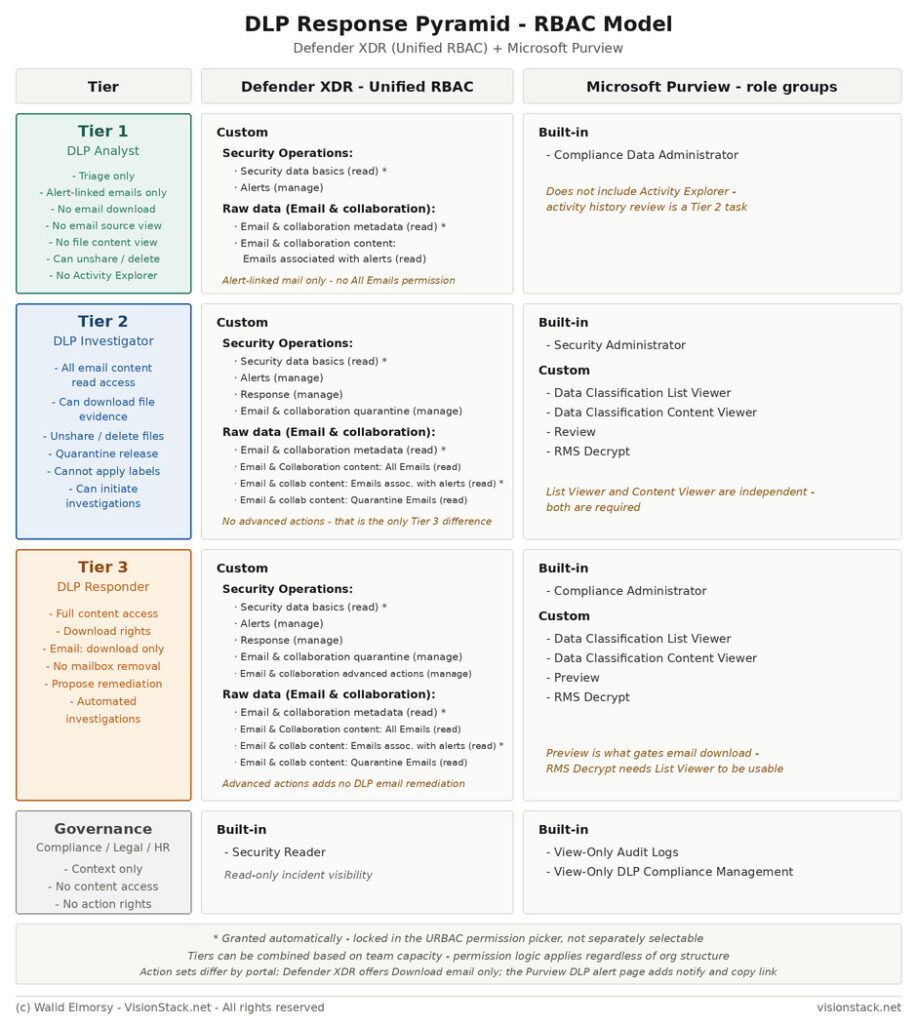
The model below maps each operational tier to specific Defender XDR Unified RBAC permissions and Purview role groups. The Defender URBAC permissions are configured as custom roles in the Defender XDR permissions section. Purview role groups are managed in the Microsoft Purview compliance portal.
Tier 1 – DLP Analyst (Triage)
Purpose: Review alerts, filter false positives, make initial escalation decisions. Limited to alert metadata, no access to sensitive content or activity history.
Defender XDR – Custom Unified RBAC role:
Permission Category
Specific Permission
Security Operations
Security data basics (read)
Security Operations
Alerts (manage)
Raw data – Email & collaboration
Email & collaboration content: Emails associated with alerts (read)
Purview – Role Group:
Type
Role Group
Built-in
Compliance Data Administrator
Note:
Compliance Data Administrator does not include Activity Explorer access. Tier 1 sees DLP alerts in the Purview alerts view and works the incident from the Defender XDR queue. Any activity history review is a Tier 2 task and should be named as such in the escalation note.
What this gives them in practice:
Can access and manage XDR DLP incidents and alerts
Can view evidence metadata only
Can view SIT match counts, but not sensitive info details
Cannot view or download evidence content (email body, file contents)
Cannot action email evidence
Cannot take remediation actions on file evidence
Cannot initiate automated investigations
Tier 2 – DLP Investigator (Investigation)
Purpose: Deep-dive analysis, context enrichment, intent assessment, investigation decisions. Needs working access to evidence content, including file download where the investigation requires reading the file.
Can access and manage XDR DLP incidents and alerts
Can view evidence metadata and content
Can view SIT match counts, sensitive info details, and contextual summary
Can view email and file evidence source
Can download file evidence and open it locally
Can release from quarantine
Can action SharePoint and OneDrive file evidence (un-share, delete, download)
Cannot apply a sensitivity or retention label from the alert
Can initiate automated investigations
The RMS Decrypt role is worth calling out specifically. In Microsoft Purview’s Content Explorer, this role allows the portal to strip encryption for inline viewing, assuming the account can reach the item in the first place. Without it, protected content cannot be viewed inline there.
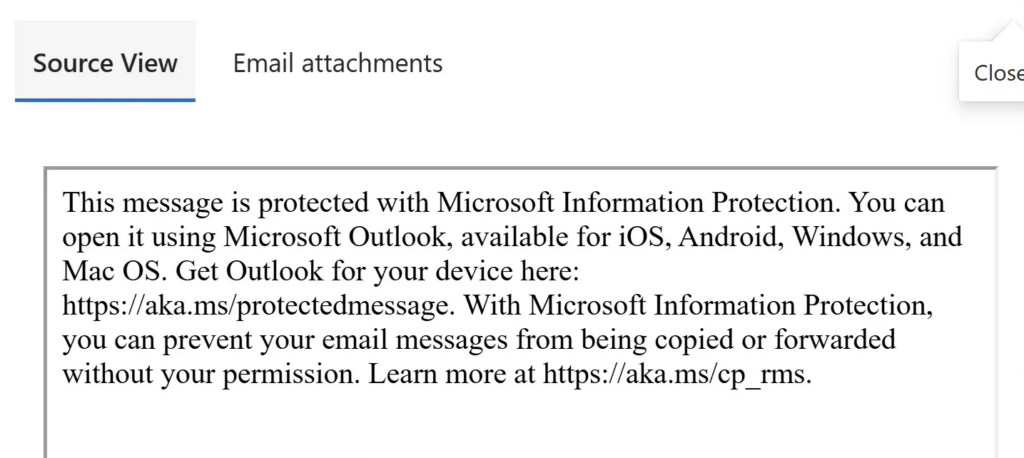
In the Defender XDR and Purview portals, the behavior is different. MIP-encrypted emails and files appear as “Protected” and cannot be viewed inline, the “source” view is not available for encrypted items regardless of roles assigned. Encrypted evidences must be downloaded and opened in the relevant Office app in order to be inspected.
In most enterprise environments, the files most likely to be involved in real DLP incidents are exactly the ones with protection applied. Worth factoring into your investigation workflow design.
This assumes the account can open Content Explorer at all. See the role group note below – RMS Decrypt without the list viewer role gets you nothing, since the item is unreachable before decryption becomes relevant.
Tier 3 – DLP Incident Responder (Containment)
Purpose: Take confirmed containment and remediation actions on validated incidents. Full evidence access, and the complete action set available on DLP evidence – which on email is narrower than the tier name implies.
Content Explorer is gated by two independent role groups – a list viewer role to see items and their locations, and a content viewer role to read what is inside them. The permissions are not cumulative. Since May 2026 the list viewer requirement is enforced consistently across the whole experience, which means an account holding Data Classification Content Viewer alone cannot navigate to the item it is permissioned to read. The result is an investigator with content rights and no way to reach any content.
If your model expects Tier 2 to assess classification accuracy, assign both. If it does not, name the person who does hold both, because that escalation path needs to exist before an investigation needs it.
What this gives them in practice:
Can access and manage XDR DLP incidents and alerts
Can view evidence metadata and content
Can view SIT match counts, sensitive info details, and contextual summary
Can view and download email and file evidence, release email from quarantine
Cannot remove a delivered email from a mailbox – no such action exists on DLP email evidence (Obviously )
Can initiate automated investigations and propose remediation
The difference between Tier 2 and Tier 3 from a Defender URBAC perspective is the addition of Email & collaboration advanced actions (manage).
Download rights are not the dividing line, and it is worth correcting that assumption before you build a runbook on it. On SharePoint file evidence, a Tier 2 investigator can download the file and open it locally. That is a deliberate part of the model rather than an oversight, because reading a file is often the only way to determine whether its classification is accurate – but it means the separation between investigation and containment rests on a narrower base than the tier names suggest.
Worth being precise about what that buys you on a DLP alert, because it is less than the permission name suggests. On email evidence in Defender XDR, the only available action is Download email. The Purview DLP alert page for the same alert adds Send email notification and Copy event link. Neither portal offers remove-from-mailbox, purge, or recall. The advanced actions permission matters for Defender for Office 365 email workflows. It does not turn a DLP responder into someone who can take a delivered email back -and if your runbook lists actions from the portal your analysts don’t use, they will go looking for buttons that aren’t there.
Design your containment tier around that. For outbound email, response is evidence preservation and Governance engagement. Prevention is the only control that operates before delivery.
Governance Layer – Compliance, Legal, HR
This layer requires incident context and case status visibility. They don’t need content access or action rights unless a specific regulatory or legal scenario requires it. And if it does, that access should be time-bound and audited.
For most organizations, read access to case status in Defender XDR (via Security Reader) and relevant Purview audit log access (View-Only Audit Logs) is sufficient. Avoid assigning Compliance Administrator or Security Administrator to governance personas, those roles carry significant action rights that the governance layer has no business need for.
DLP Response Pyramid RBAC model – Defender XDR Unified RBAC and Microsoft Purview role groups, mapped per tier.
A word on content access and audit discipline
The content viewer roles in Purview – particularly Data Classification Content Viewer – are the highest-sensitivity permissions in this model. They allow analysts to see actual file and email content involved in DLP incidents, which means they can see the sensitive data itself.
All access through Content Explorer is logged in the Microsoft 365 unified audit log. That audit trail should be actively reviewed, not just retained. In environments with regulatory data handling obligations – GDPR, HIPAA, financial sector requirements – having a documented review process for content access is part of demonstrating compliance, not just a good practice.
For environments using Azure AD Privileged Identity Management (PIM), the content viewer roles and the Tier 3 response permissions are strong candidates for just-in-time (JIT) elevation rather than permanent assignment. The friction is low. The audit trail and time-bound access are meaningful controls.
Connecting the permission model to the operating model
The RBAC configuration above gives each tier the access they need and nothing more. But the permission model only works if the incident workflow enforces the tier boundaries in practice.
Tier 1 should complete triage and log a decision before escalation, not forward raw, unreviewed alerts to Tier 2. Tier 2 investigation records should document the rationale for escalation or closure, not just a status change. Tier 3 containment actions should reference a specific investigation record. None of this is enforced by RBAC alone, it requires workflow discipline on top of access control.
That’s the subject of the next post.
What’s coming next
Access controls define what each tier can see and do. Communication and escalation patterns define how those tiers hand work off to each other, and that’s where most DLP incidents quietly stall even when the RBAC model is correctly configured.
The next post covers escalation triggers, documentation requirements at each hand-off, and how to handle the cross-functional communication with Legal and HR that most security teams underestimate.
The views and opinions expressed in this post are solely the author’s own and do not reflect the views of their employer, clients, or any affiliated organisation. Nothing here is professional advice, and no content is based on confidential or client-specific information.


 )
)
0 comments