
Purview Content Explorer: When “Last Modified” Can Trick You
Purview Content Explorer: When “Last Modified” Can Trick You
If you’ve ever built a “sensitive files modified in the last X days” report from Purview Content Explorer exports and thought, “Nice, we’re capturing real tenant data estate status”… there’s a decent chance you’ve been measuring something else.
Because in Microsoft 365, “Last Modified” isn’t always one truth. Sometimes it’s the file’s own embedded history. Sometimes it’s SharePoint/OneDrive’s service-side history. And if you mix them up, your “recent data estate” reporting can be quietly inaccurate.
The fun part: it still looks correct. The charts render. The KPIs look plausible. Everyone nods.
(And then you make a decision based on a PDF that claims it was last modified in 2011.)
The 60-day reality check
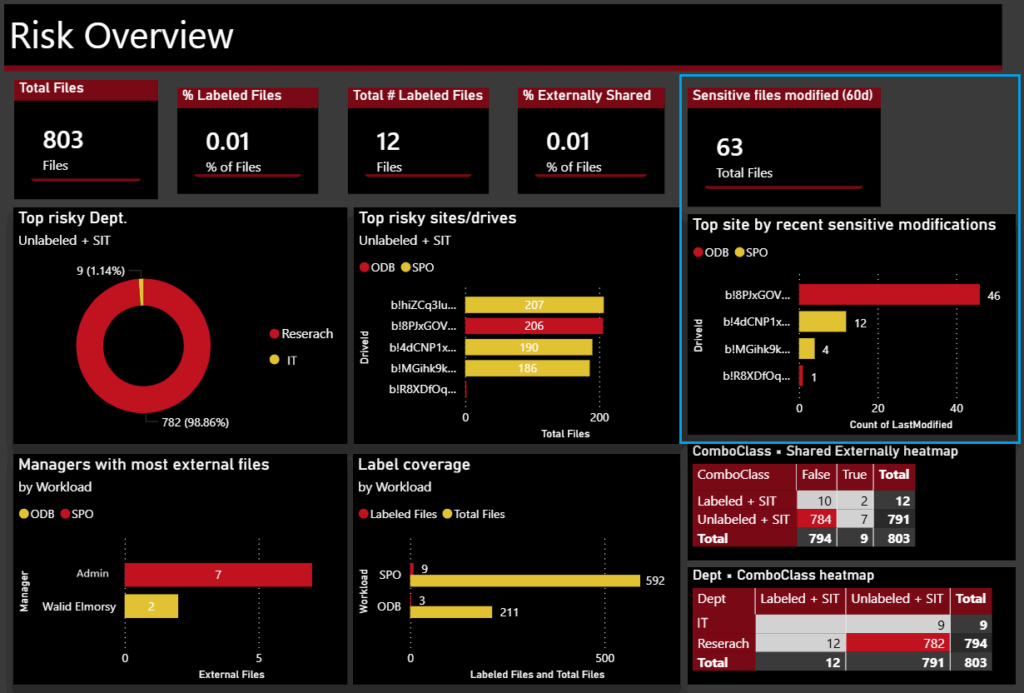
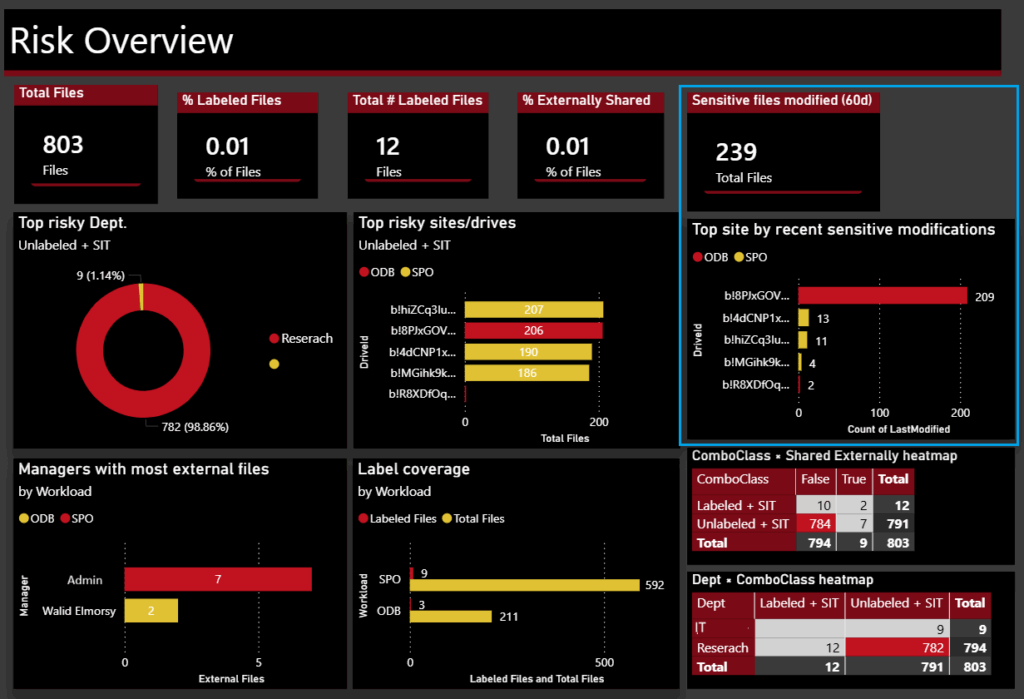
I built a simple 60-day view (the charts in question are highlighted in blue):
- “Sensitive files modified (60d)”
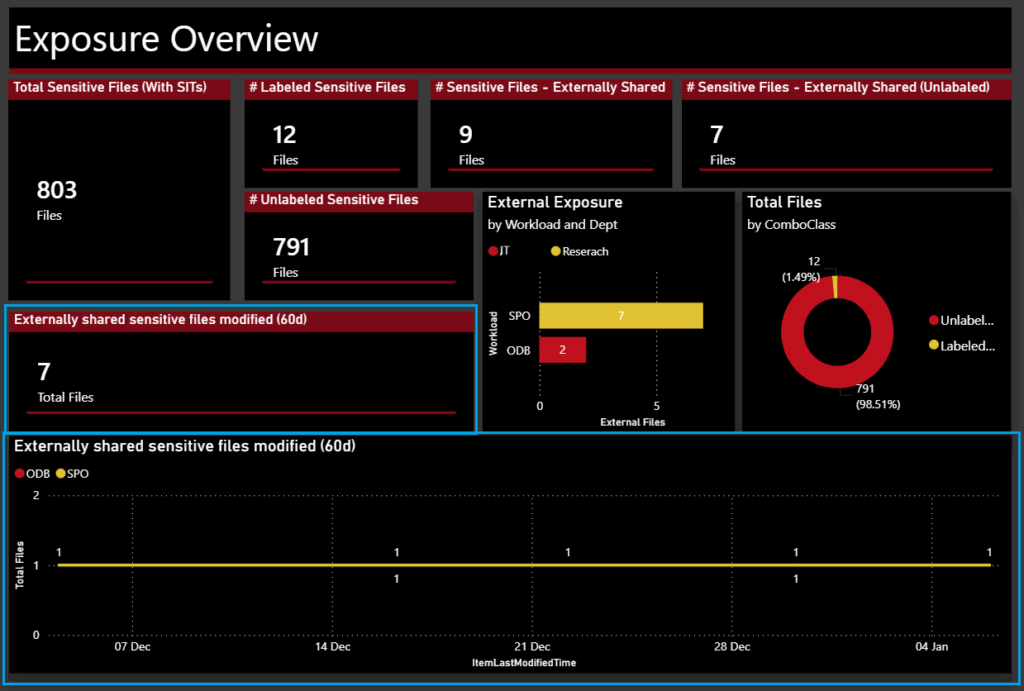
- “Externally shared sensitive files modified (60d)”
- “Top site by recent sensitive modifications”
- A trend line over the window
Then I swapped one field.
Version A (uses LastModified – as exported from Purview Content Explorer)
- 63 sensitive files modified (60d)
- 6 externally shared sensitive files modified (60d)
Version B (uses ItemLastModifiedTime – obtained from SharePoint Online via Microsoft Graph API)
- 239 sensitive files modified (60d)
- 7 externally shared sensitive files modified (60d)
Same scope, window and tenant. Different “Last Modified”.
“Sensitive files modified (60d)” using LastModified showing 63 + top site bar
“Externally shared sensitive files modified (60d)” using LastModified showing 6 + trend
“Sensitive files modified (60d)” using ItemLastModifiedTime showing 239 + top site bar
“Externally shared sensitive files modified (60d)” using ItemLastModifiedTime showing 7 + trend
Why the mismatch happens: there are two “last modified” clocks
Clock 1: Document metadata (the file’s own story)
Some file formats carry their own embedded metadata, including modification timestamps and “last saved by”-style information.
Purview itself is explicit about this in eDiscovery/export metadata:
- “Last modified time” is the “Last modified date from document metadata.”
That means the value can reflect the file’s internal history, potentially from long before the file ever entered your SharePoint/OneDrive tenant.
This is why you’ll often see the effect on “rich” formats like PDF and Office documents. PDFs can store metadata in a document information dictionary and/or XMP metadata streams, and standards work has long acknowledged the “multiple metadata containers” reality inside PDFs.
So if a PDF was last edited in 2011, then uploaded into SharePoint in 2026, it can still legitimately carry a 2011 “modified” value as part of its embedded metadata.
Clock 2: SharePoint/OneDrive item metadata (the tenant’s story)
SharePoint/OneDrive also maintains item-level metadata representing what happened in the service.
Microsoft Graph draws a clean line between:
- Service-side timestamps (as seen by SharePoint/OneDrive), and
- Client/file-system-provided timestamps (what the uploading device reports)
The Graph fileSystemInfo resource is very explicit:
- It contains properties “reported by the device’s local file system.”
- It notes that these values “vary from the same properties on the driveItem resource.”
- The values on the DriveItem resource are the created and modified date and time as seen from the service. The values stored in the FileSystemInfo resource are provided by the client. This is why service timestamps (DriveItem) can differ from client/file timestamps (fileSystemInfo).
That is the “two clocks” model in plain English.
So when you use SharePoint/OneDrive item timestamps (like ItemLastModifiedTime in the above example), you’re grounding “recent activity” in tenant reality, which is what most security reporting actually intends.
Why Office Documents/PDFs get hit harder (and why CSV/TXT often don’t)
This lines up with how file formats behave:
- Office Document formats carry rich document properties as well, which can persist across copies and uploads.
- PDFs frequently carry embedded metadata such as “modified date” in metadata dictionaries/streams.
- TXT/CSV generally don’t have a widely-used equivalent of “embedded author/last modified” document metadata.
So when a system tries to populate “Last Modified” from document metadata, PDFs and Office docs tend to return a meaningful value, even if it’s not what you want for “recent tenant activity”. Plain text formats often have less embedded metadata to extract, so they’re less likely to produce that misleading “ancient last modified” effect.
(Translation: Office Docs/PDFs show up with a backstory. CSVs show up with a blank name tag.)
Why this matters for security dashboards
If your report is meant to answer questions like:
- “What sensitive content changed recently in our tenant?”
- “Which sites are actively modifying sensitive files?”
- “What externally shared sensitive content has been touched recently?”
…then the service-side item timestamp is usually the relevant one.
If you accidentally use document metadata “LastModified in the above example” for those questions, you can end up with:
- Undercounting true recent activity (newly uploaded/changed files don’t look “recent” if their embedded metadata is old)
- Misleading top sites and trends (your “hotspots” are based on the wrong recency signal)
- False calm in operational views (“only 63 files changed”) when tenant reality is higher (“239 files changed”)
The key point isn’t “Content Explorer is wrong”. It’s that “Last Modified” is overloaded language, and the field you choose must match the question you’re answering.
The practical fix: model both timestamps (and name them honestly)
A simple pattern that avoids future confusion:
- DocumentLastModified (document metadata)
– Useful for lineage, provenance, records conversations, “how old is this file as a document?” - ItemLastModifiedTime (SharePoint/OneDrive item modified time)
– Use this for security operations: “recent changes”, “recent exposure”, “active sites”, and “top modifiers”.
If you want one extra “tell me when something smells” metric:
- Add a delta between the two timestamps (days/months). Huge gaps are often where migrations, bulk uploads, or legacy document sets get introduced into modern collaboration spaces, which is exactly where security reporting gets interesting.
Conclusion
“Last Modified” can trick you because it can mean either:
- The file’s internal history, or
- The tenant’s activity history
Both are legitimate. They just answer different questions.
Security reporting almost always wants tenant activity. Using the wrong clock doesn’t just skew the story. It replaces it.
The views and opinions expressed in this post are solely the author’s own and do not reflect the views of their employer, clients, or any affiliated organisation. Nothing here is professional advice, and no content is based on confidential or client-specific information.
Leave A Comment
0 comments