
Why Most .NET Logs Are Useless — And How to Fix Them With Application Insights
Why Most .NET Logs Are Useless — And How to Fix Them With Application Insights
If you’ve ever opened Application Insights during a production incident and felt that sinking feeling — the one where you realise your logs can’t answer even basic questions — you’re not alone.
Questions like:
- What request failed?
- Why did it fail?
- Which specific record was affected?
- Can I trace this across services?
If your logs can’t answer these, the problem isn’t .NET. It isn’t Azure. It isn’t Application Insights.
Its how we log
This guide shows you how to turn your logs from “expensive text files” into a real diagnostic system — with structured logging, scopes, correlation, and practical examples you can apply today.
Imagine the scenario
…where thousands of orders move through the API every hour. Most requests follow the same path — validate the order, charge the payment method, and hand everything off to the order‑processing workflow. But occasionally, one of those orders fails somewhere between the API, the payment service, and the downstream processor. From the outside, the request looks completely normal, yet the order never completes. When engineers open Application Insights, all they find is a generic error with no OrderId, no customer identifier, and no way to trace the request across services.
Now let’s explore this in the context of logging — and see how structured logs, scopes, and contextual exceptions turn this kind of failure from a guessing game into a traceable, diagnosable story.
The Problem: Logs Written for Humans, Not Systems
Let’s start with a very common example:
_logger.LogInformation("Starting order processing");

try
{
    ProcessOrder(order);
}
catch (Exception ex)
{
    _logger.LogError(ex, "Order processing failed");
    throw;
}At first glance, this looks fine however as per the scenario, this log is almost useless at scale.
What’s missing? – The Context
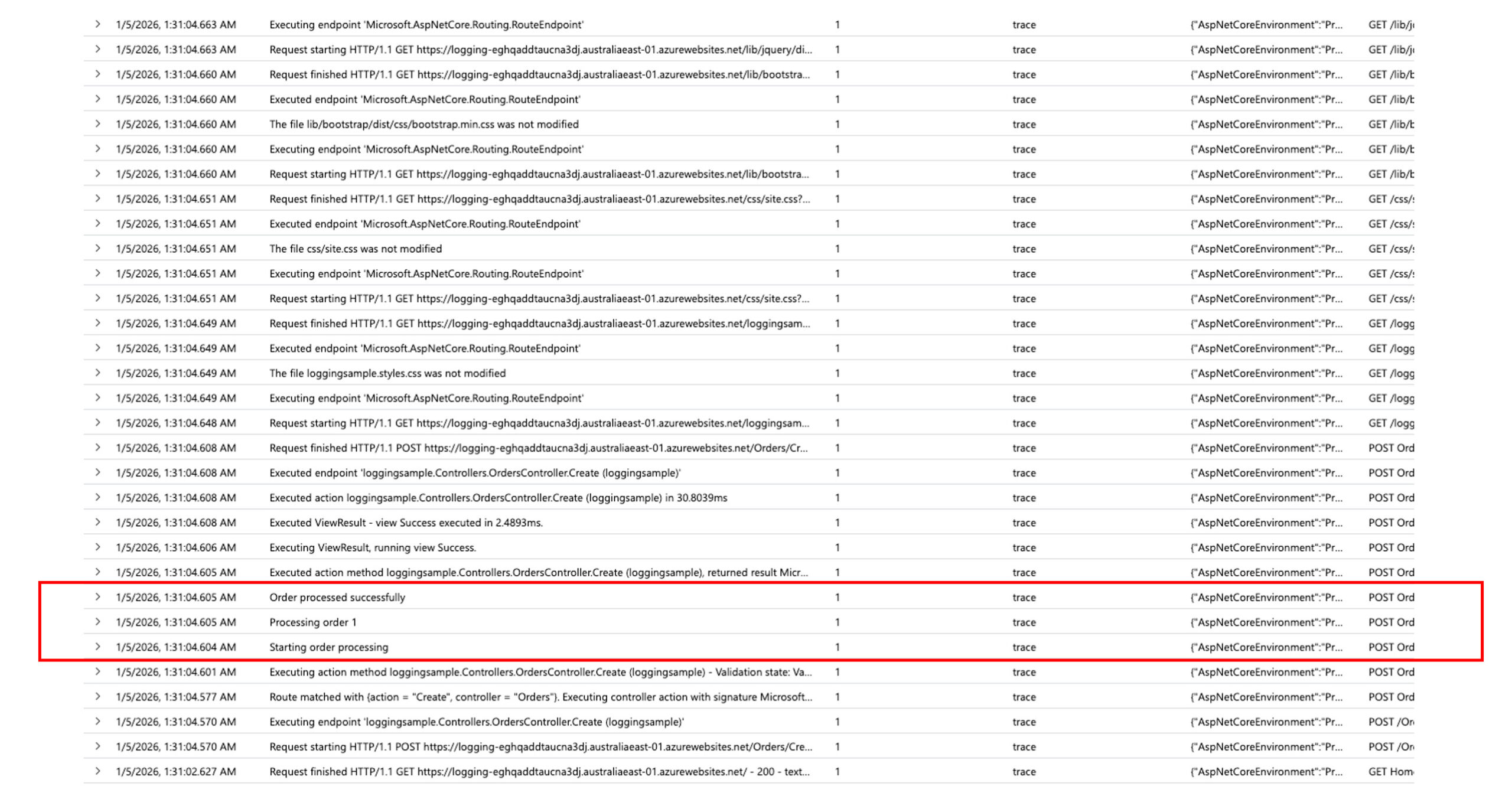
In Application Insights, this becomes free text logs that get lost in 1000s of other logs. To improve this, you can add context as per below
_logger.LogInformation("Processing order " + order.Id);However, it is still hard to query, correlate or alert on. See example below
Principle #1: If You Can’t Query It, It’s Noise
Example of Good and improved logging (structured logging);
_logger.LogInformation(
    "Processing order {OrderId} for customer {CustomerId}",
    order.Id,
    order.CustomerId
);This adds custom dimensions to your logging as per below
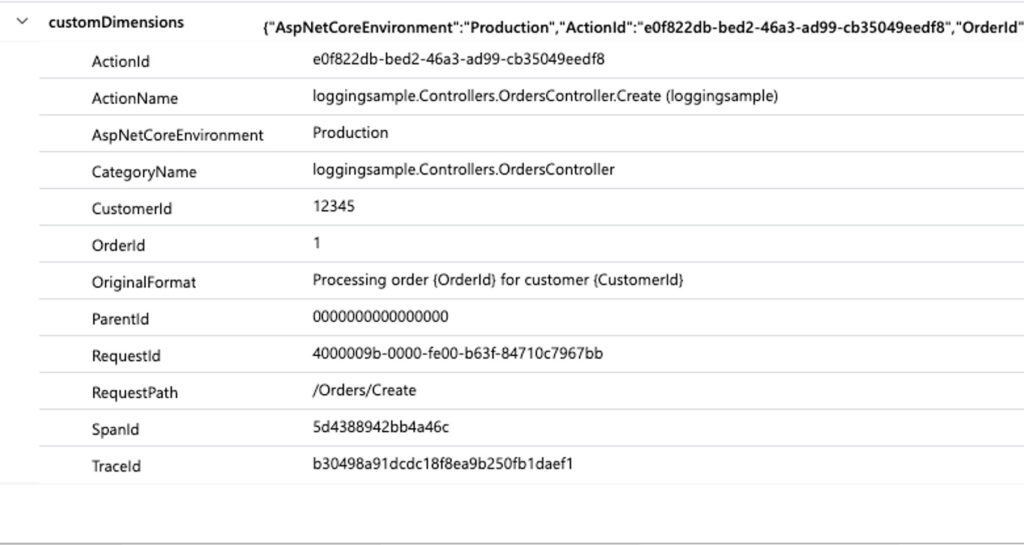
Why this matters: In Application Insights, this lets you run queries like:
traces
| where customDimensions.OrderId == "1"Instead of:
- Searching raw text
- Guessing formats
- Praying the message didn’t change

Principle #2: Every Request Needs an Identity
Application Insights already assigns an operation ID, but you can enrich logs with business context.
Use logging scopes
using (_logger.BeginScope(new Dictionary<string, object>
{
    ["OrderId"] = order.Id,
    ["CustomerId"] = order.CustomerId
}))
{
    _logger.LogInformation("Processing order");

    ProcessOrder(order);
}Now every log inside this scope automatically includes:
- OrderId
- CustomerId
In Application Insights, these appear under customDimensions. By running the trace query like before, you get all the operations related to specific order ID

Principle #3: Exceptions Alone Are Not Enough
This is a common anti-pattern:
catch (Exception ex)
{
    _logger.LogError(ex, "Something went wrong");
    throw;
}Yes, the stack trace is captured — but the context is missing again.
Instead we can add context to the exceptions as well by doing the below and make the exceptions queryable, Correlated to add context to the exception
catch (Exception ex)
{
    _logger.LogError(
        ex,
        "Failed to process order {OrderId} for customer {CustomerId}",
        order.Id,
        order.CustomerId
    );
    throw;
}Principle #4: Log Levels Are a Contract
Log levels classify each message by intent and severity, giving your logging system the cotnext it needs to distinguish normal flow from warnings and failures. A practical rule of thumb:
- Information → Expected business flow
- Warning → Unexpected but recoverable
- Error → Failed operation requiring attention
- Critical → System-level failure
Example:
_logger.LogWarning(
    "Payment retry triggered for order {OrderId}",
    order.Id
);Principle #5: Let Application Insights Do the Heavy Lifting
Don’t reinvent correlation IDs or request tracking.
Application Insights automatically tracks:
- Incoming HTTP requests
- Outgoing HTTP dependencies
- SQL calls
- Azure service calls
This means one failed request can show:
- The controller
- The database call
- The downstream API
- The exact exception
Your job is to add meaningful business signals, not infrastructure noise.
A Simple KQL Query You’ll Actually Use
Find failed requests for a specific order:
requests
| where success == false
| join traces on operation_Id
| where customDimensions.OrderId == "1"
| project timestamp, message, severityLevelFinal Thoughts
Logging isn’t about writing messages, It’s about answering questions under pressure.
If your logs can’t tell you:
- What failed
- Why it failed
- Who was affected
Then they’re just expensive text files in Azure.
Start treating logging as a first-class design concern, and Application Insights becomes one of the most powerful tools in your stack.
1 comments
Walid Elmorsy January 5, 2026 at 4:44 am
Love it mate!. For someone with zero .NET background, it made perfect sense! (Troubleshooting .Net in App Insights can be dreadful!)