
Purview DLP Incident Management (IM) – From Alert to Outcome #13
Purview DLP Incident Management (IM) – From Alert to Outcome #13
Phase 5 – Real Ops and Future State
Real-World DLP Incident Scenarios – Exchange Online.
Overview
Everything built across this series – the operating model, the RBAC personas, the triage framework, the investigation methodology, the tooling decisions, the automation patterns, the measurement model – comes together in this post.
This is Scenario 1: a Finance team member sends a Confidential-labelled file to an external personal email address, overrides the policy tip with a business justification, and the email is delivered. What follows is the full incident lifecycle, run through all three VisionStack RBAC personas, from the moment the alert lands in the Defender XDR queue to a documented closure.
The scenario ends somewhere most DLP walkthroughs do not go. The email was delivered. There is no product action that takes it back. What Tier 3 does at that point is the part of the operating model that gets written last and tested first.
Quick recap
In the previous post, we established the measurement frame for a functioning DLP programme – separating activity metrics from outcome metrics, and setting the cadence for each. The metrics introduced there are what this scenario produces in practice: a True Positive incident, a documented escalation through all three tiers, and a containment record and policy review cycles.

Scenario setup
Environment: VisionStack demo tenant, policies and personas configured per Post 04
Policy in play: VisionStack – EXO – Confidential Data Exfiltration
Trigger conditions:
- Content contains sensitivity label: VisionStack – Confidential OR VisionStack – Highly Confidential
- Content is shared with people outside the organisation
- User override: allowed with business justification
Personas:
- user.one (Finance Analyst) – the subject
- tier.one (DLP Analyst, Tier 1) – triage
- tier.two (DLP Investigator, Tier 2) – investigation
- tier.three (DLP Responder, Tier 3) – containment and Governance handoff
Step 1 – Triggering the alert
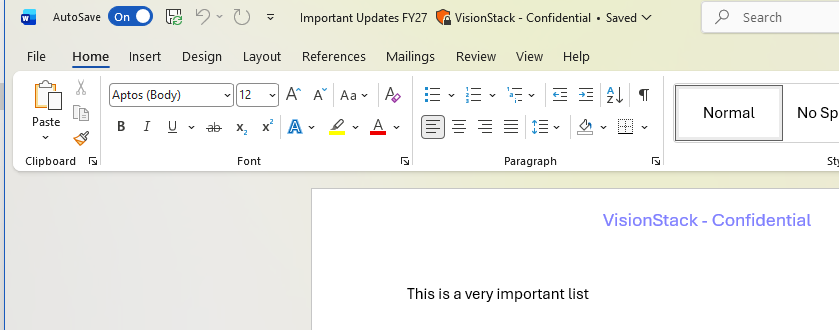
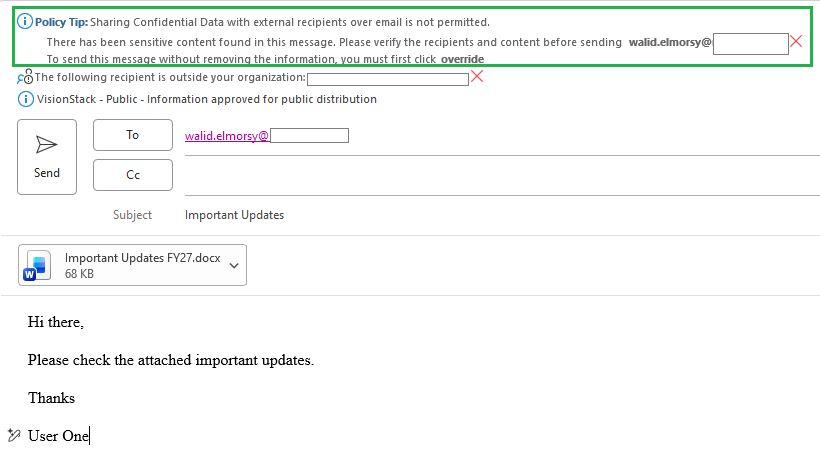
Sign in to Outlook as user.one. Compose a new email to the external test address. Attach the Confidential-labelled test file. Attempt to send.
The policy tip fires inline before the email is sent.
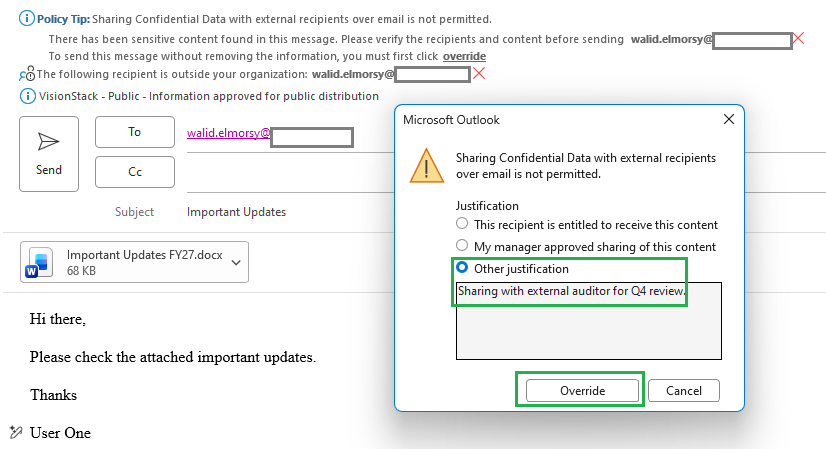
Override the tip. Select “Override” and enter the business justification: “Sharing with external auditor for Q4 review.” Send the email.
The email is delivered to the external address. The DLP policy generates an alert because the override was used on a Confidential-labelled file sent externally.
Step 2 – The alert arrives
Sign in to Defender XDR as tier.one.
Navigate to Incidents & alerts – Alerts. Filter by Detection source: Microsoft Data Loss Prevention.
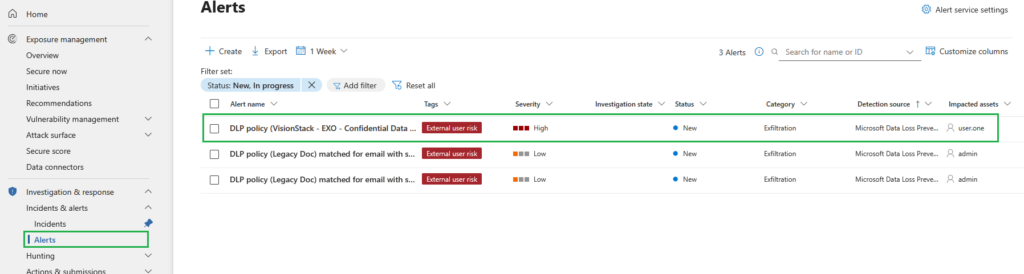
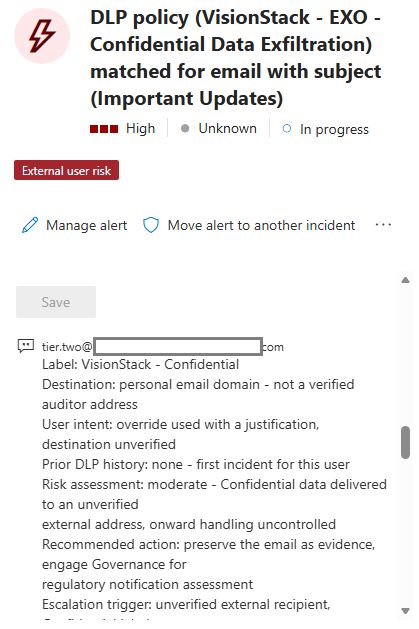
Open the alert. The alert detail shows:
- Alert title: VisionStack – EXO – Confidential Data Exfiltration matched
- Severity: High
- Policy: VisionStack – EXO – Confidential Data Exfiltration
- User: user.one
- Action taken: Audit (user override applied)
- Workload: Exchange
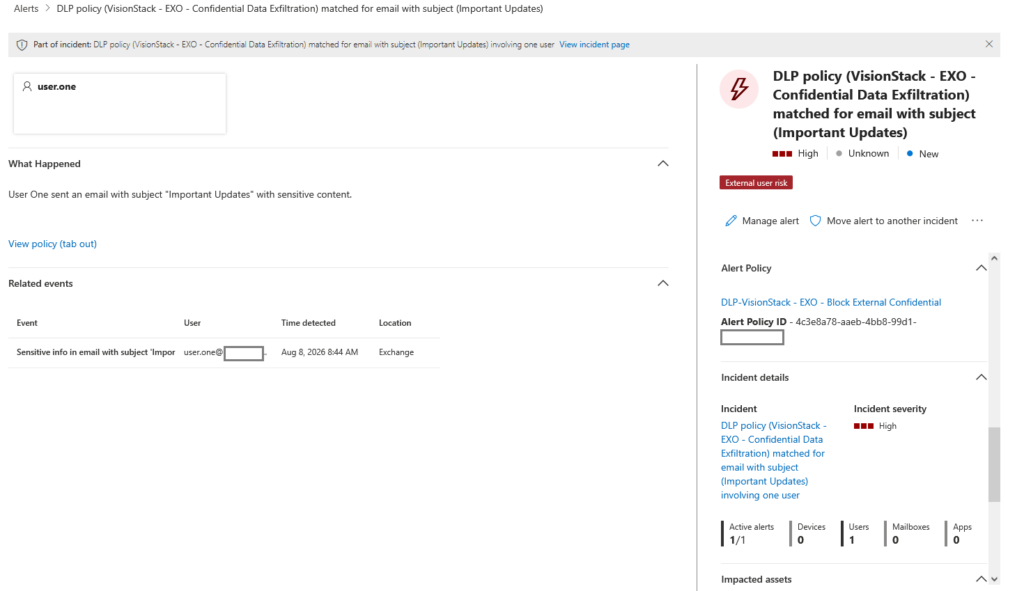
Open the alert story and the related events. The email evidence shows:
- Sender: user.one
- Recipient: the external test address
- Subject line
- Attachment name
- Sensitivity label: VisionStack – Confidential
- User justification text: “Sharing with external auditor for Q4 review“
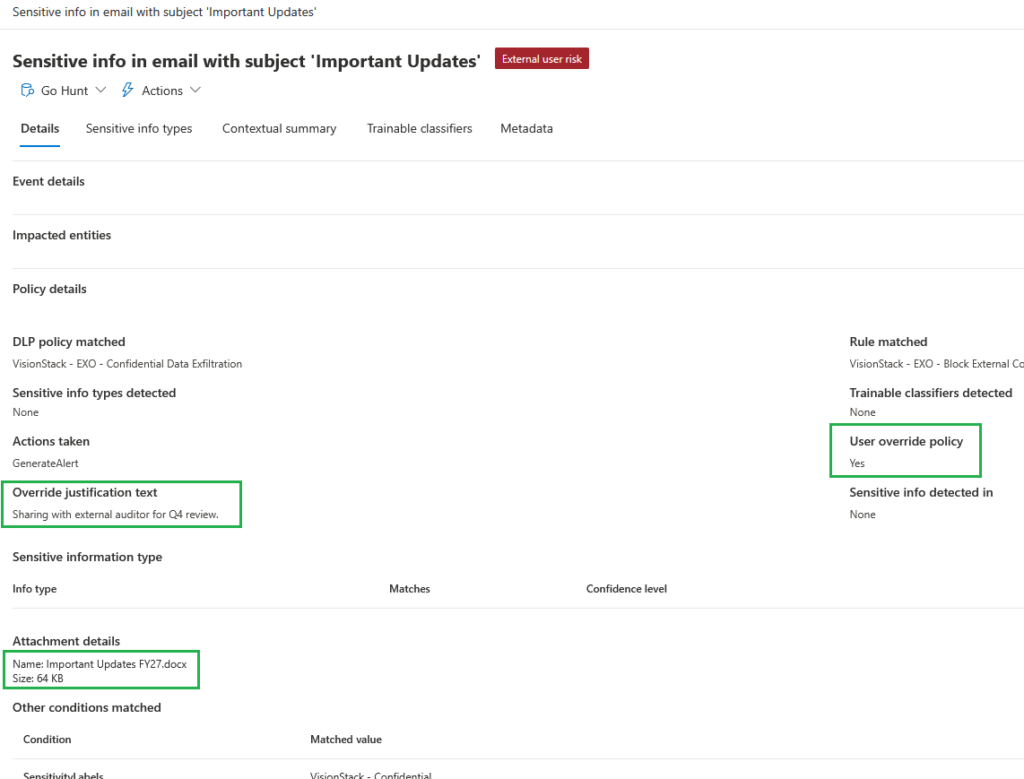
Step 3 – Tier 1 triage
tier.one works through the 4-Context Investigation Model (VisionStack’s) using what Tier 1 can see.
That last clause matters. Tier 1 in this model holds Compliance Data Administrator in Purview, and that role does not carry Activity Explorer access. Tier 1 triage runs on the Defender XDR alerts queue and the alert evidence, not on the Purview explorers. Any historical activity review is a Tier 2 task and gets named as such in the escalation note.
User context: user.one, Finance department. Tier 1 can filter the Defender XDR alerts queue by user to establish whether this user appears in other DLP alerts. Full activity history is out of scope at this tier.
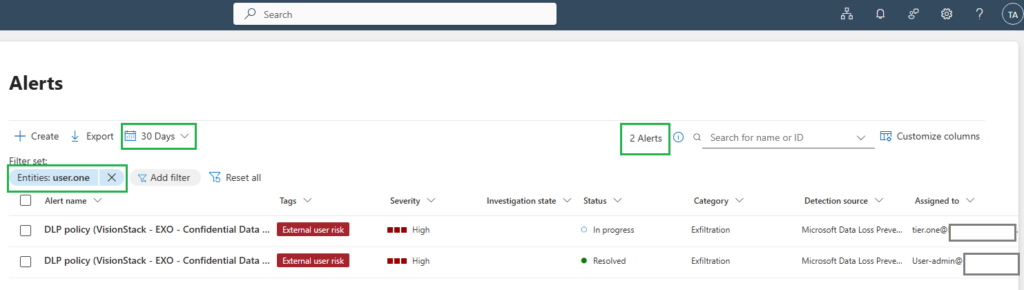
Data context:
- VisionStack – Confidential label,
- Single attachment,
- External destination (personal email domain).
Activity context:
- Outbound email to external domain,
- Override used,
- Business justification provided,
- Action occurred within normal working hours.
Environment context:
- Exchange Online workload,
- Managed corporate account.
Triage assessment:
The override justification references a legitimate business scenario (i.e. external auditor). The destination is a personal email address rather than a corporate auditor domain. The label is Confidential. Tier 1 cannot dismiss this as a clear false positive, and cannot confirm it as a pattern either – that requires activity history Tier 1 does not have.
Triage decision: Escalate to Tier 2 with documented rationale.
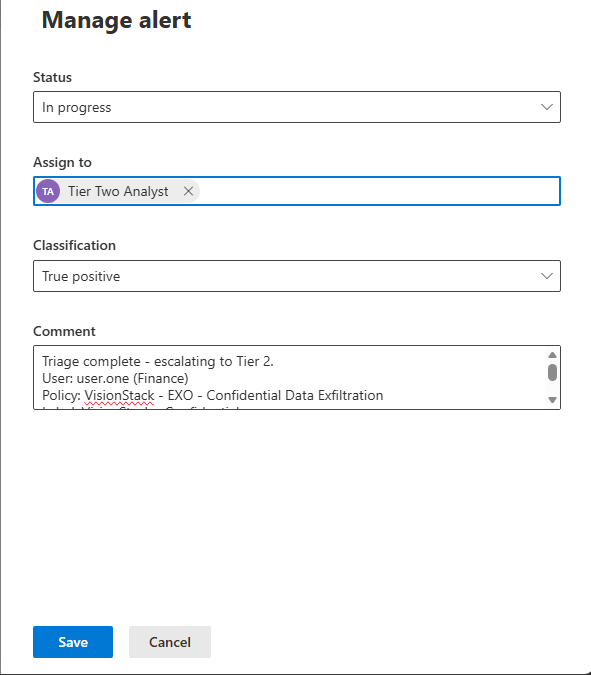
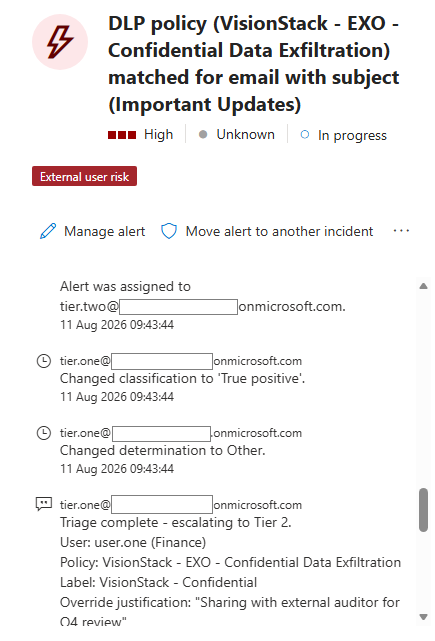
Assign the incident to tier.two. Add a comment to the incident record:
Triage complete - escalating to Tier 2.
User: user.one (Finance)
Policy: VisionStack - EXO - Confidential Data Exfiltration
Label: VisionStack - Confidential
Override justification: "Sharing with external auditor for Q4 review"
Destination: personal email domain - not a verified corporate auditor address
Prior DLP alerts visible in queue: none
Escalation trigger: destination is unverified external personal address; business justification cannot be confirmed from alert evidence alone.
Note: Activity Explorer review not available at Tier 1 - Tier 2 to check full activity history for this user during investigation.
Update alert status to In progress and assign to tier.two.
Step 4 – Tier 2 investigation
Sign in to Defender XDR as tier.two.
Open the assigned incident. Review the Tier 1 triage notes,including the deferred activity history check.
Evidence review:
tier.two holds the Email & collaboration content: All Emails (read) permission, which is what separates this tier from Tier 1 on the evidence surface.

Activity history:
This is the check Tier 1 deferred. Rather than hand-writing a hunting query, use the built-in queries Defender surfaces from the event itself. Select the event in the alert, open the event details pane, and select Go Hunt. Defender offers queries scoped to the source location of the event, including a user DLP violations query covering the last 30 days.
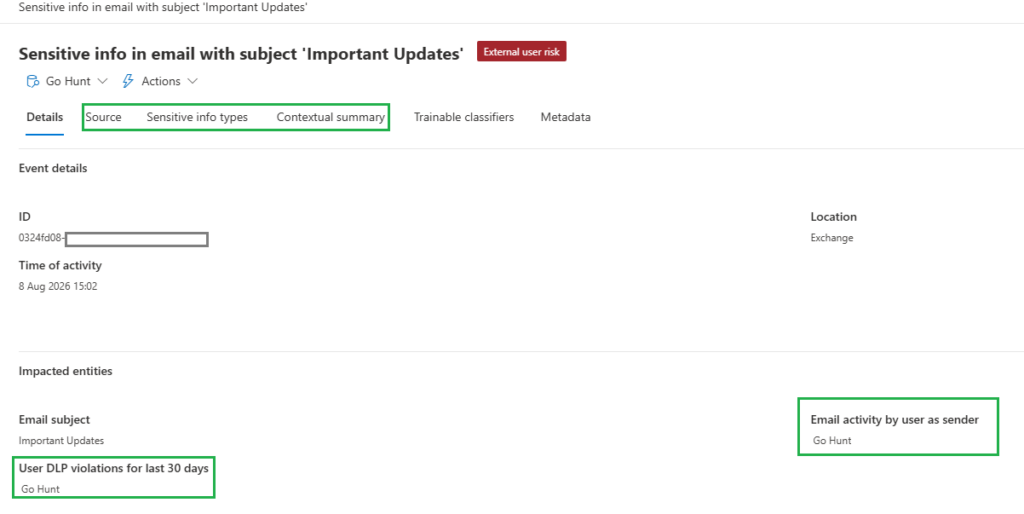
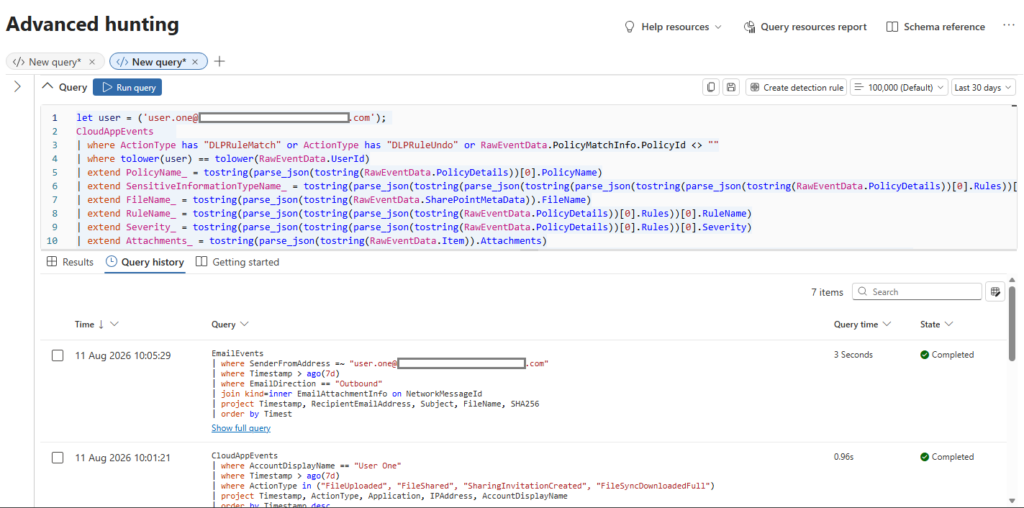
when you select a query, and click on “Run query“:
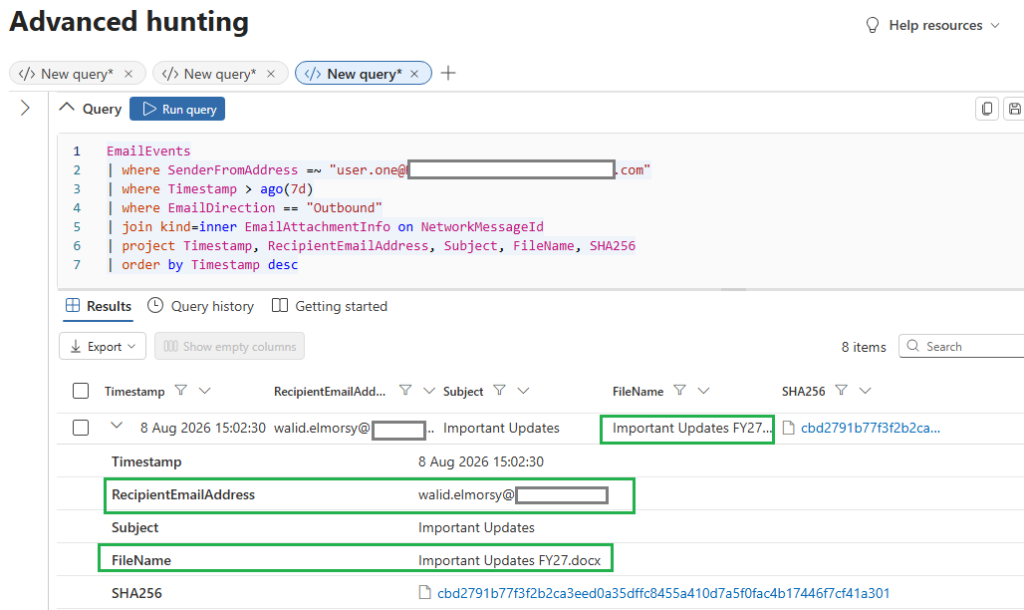
Using the product’s own scoped queries has a second benefit beyond saving typing. The query set Defender offers tells you which tables it considers relevant to that event type, which is a more reliable starting point than assuming a table contains what you expect it to contain.
Investigation assessment:
The justification references an external auditor. The destination is a personal email domain. There is no prior DLP history for user.one, which reads as a poorly-considered action rather than an exfiltration pattern. The label is Confidential rather than Highly Confidential, and the file’s onward handling is now uncontrolled.
Investigation decision: Confirmed risk. Escalate to Tier 3 for evidence preservation and Governance engagement.
Add investigation record to incident:
Investigation complete - escalating to Tier 3.
Label: VisionStack - Confidential
Destination: personal email domain - not a verified auditor address
User intent: override used with a justification, destination unverified
Prior DLP history: none - first incident for this user
Risk assessment: moderate - Confidential data delivered to an unverified
external address, onward handling uncontrolled
Recommended action: preserve the email as evidence, engage Governance for
regulatory notification assessment
Escalation trigger: unverified external recipient, Confidential label,
delivery already occurred
Assign incident to tier.three.
Step 5 – Tier 3 containment
Sign in to Defender XDR as tier.three.
Review the incident history: Tier 1 triage notes, Tier 2 investigation record, recommendation for evidence preservation and Governance engagement.
Now the part that decides whether your operating model survives contact with reality  .
.
What the product offers here:
Open the Actions menu on the email evidence for this alert.
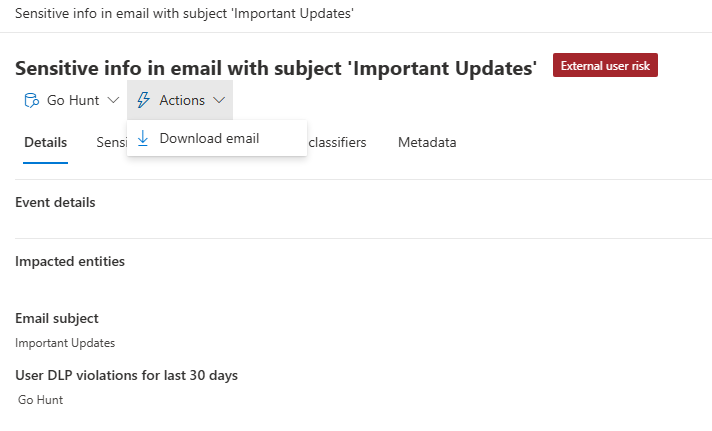
One action. Download email. That is the entire containment toolkit for a Tier 3 responder holding Email & collaboration advanced actions (manage), on a DLP alert for an email that has already been delivered.
It is worth being precise about where this menu lives, because the portals differ. The Purview DLP alert page for the same incident offers a slightly wider set – Download email, Send email notification, Copy event link.
Defender XDR offers Download email alone. If your runbook was written against one portal and your analysts work in the other, the actions in the runbook will not be there when someone goes looking for them.
Microsoft’s guidance on investigating DLP alerts in Defender XDR is consistent with this: for email alerts, the documented action is downloading the message. Remediation actions on files in SharePoint and OneDrive are a separate and larger set. Email is not that.
And the harder constraint:
Even if a removal action existed, it would not help here. The email was delivered to an external mailbox. That mailbox is outside the tenant. There is no mechanism in any Microsoft security product (or any vendor’s product for that matter) to reach into a mailbox you do not control and remove a message that has already arrived. Once external delivery completes, the technical containment window has closed.
This is worth sitting with, because a lot of DLP operating models are written with a containment tier that assumes a containment action exists. For outbound email that has already left, it does not. The tier still has work to do. That work is organisational.
What Tier 3 does instead:
- Preserve the evidence: Select Download email from the Actions menu. This produces the message for the incident record, which matters if the Governance assessment escalates to a regulatory notification or an HR process. Evidence preservation is a containment action in the sense that it prevents the loss of the record, which is the only thing still within reach.
- Record the incident reference in the Governance case so the investigation is traceable from any downstream ticket. If your team works the Purview alert page rather than Defender XDR, Copy event link does this for you. In Defender XDR, capture the incident URL manually.
- Engage Governance: This is the fourth layer of the DLP Response Pyramid (VisionStack’s), and this scenario is exactly what it exists for. Confidential-labelled data has been delivered to an unverified external personal address. Whether that triggers a notification obligation is not a SOC decision, and Tier 3‘s job is to hand it over with a complete record rather than to answer it.
Add the containment record:
Tier 3 complete - no technical containment available.
Actions available on this alert in Defender XDR: Download email. That is the
complete set. No removal, purge, or recall action exists for email evidence.
(The Purview DLP alert page for the same incident additionally offers Send
email notification and Copy event link - neither is a containment action.)
Action taken: email downloaded and preserved with the incident record.
Incident URL recorded in the Governance case.

External delivery status: the email reached an external mailbox outside
tenant control. It cannot be retrieved by any available mechanism.

Governance notification: initiated. Compliance to assess regulatory
implications of Confidential data delivered to an unverified external
personal address.

Recommended follow-up: user awareness conversation via manager.
Governance review of the external auditor engagement process - personal
email addresses should not be a permitted destination for document sharing
regardless of label.
Step 6 – Incident closure
With containment documented and Governance engaged, close the incident.
Set classification: True Positive (override used to send Confidential data to an unverified personal email address)
Add final closure note:
Incident closed - True Positive.
Data involved: Confidential-labelled file (Finance)
Exposure: External delivery to personal email address - unverified recipient
Containment: None available - no removal action exists and the message
was delivered externally. Email downloaded and preserved as evidence.
Governance: Engaged for regulatory notification assessment
Lessons learned: Override mechanism permitted delivery to an unverified destination.
Policy review: Consider whether "Sharing with external auditor" justification text
should trigger an additional verification step or policy tightening for personal domains.
Suppression rule: Not applicable - this was a confirmed risk, not a false positive.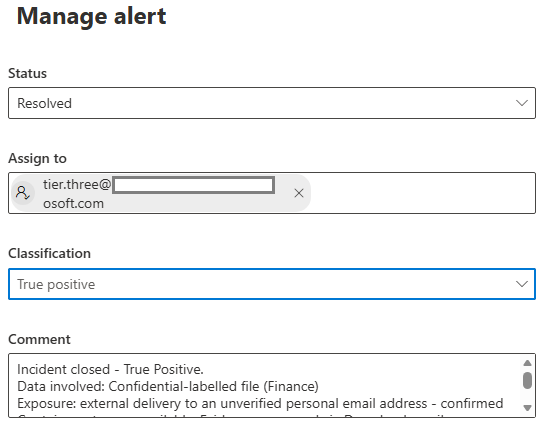
What this scenario produced
Running this incident through the model gives you:
- One True Positive for the classification distribution metric.
- A documented escalation through all three tiers, with rationale at each handoff – exactly the pattern the DLP Escalation Discipline (VisionStack’s) requires.
- A containment tier with one available action, and it isn’t containment – the external delivery cannot be reversed. That limitation is now documented in the incident record, which is the correct outcome. The programme knows what happened and what couldn’t be done.
- A Governance engagement triggered by the exposure, with the compliance team now holding the regulatory assessment question.
- Two policy review signals from the lessons learned entry: whether personal email domains should be permitted as override destinations, and whether the auditor engagement process needs formal controls.
What’s coming next
Scenario 2 takes a different path. A Highly Confidential file is blocked from sharing on SharePoint – the policy works exactly as designed. The alert still fires. And the investigation at Tier 2 surfaces something more interesting than the sharing attempt itself.
The views and opinions expressed in this post are solely the author’s own and do not reflect the views of their employer, clients, or any affiliated organisation. Nothing here is professional advice, and no content is based on confidential or client-specific information.
Leave A Comment
0 comments