
Purview DLP Incident Management (IM) – From Alert to Outcome #11

Purview DLP Incident Management (IM) – From Alert to Outcome #11
Phase 4 – Tools and Architecture
Automation Patterns for DLP Response.
Overview
Automation in DLP incident response is frequently over-promised and under-scoped. Teams automate the easy parts – notifications, ticket creation – and call it done. The harder, more valuable automation sits in enrichment, triage assistance, and controlled containment. This post covers the full range, including where automation genuinely helps and where it quietly creates new problems.
Quick recap
In Post 10, we covered the four integration patterns for DLP data. Defender XDR native, Sentinel via connector, ITSM via Logic Apps, and custom Graph API pipelines.
Automation builds on top of those integration patterns. The data flows are the foundation. What you do with that data – automatically – is what this post is about  .
.

The DLP Automation Ladder
Before getting into specific patterns, it helps to have a mental model for where automation sits across the incident lifecycle. VisionStack’s DLP Automation Ladder maps automation opportunities to the four stages of incident handling:
The ladder matters because automation risk increases as you move right. Enriching an alert automatically carries minimal risk. Auto-revoking a user’s access without human review carries significant risk – both operationally and legally. The automation design should reflect that gradient.
Where automation adds value
- Alert enrichment: is the highest-value, lowest-risk automation in DLP operations. When an alert fires, there is a fixed set of context that can be assembled automatically without any human judgment required: user department and employment status from Entra ID, prior DLP alert history from Defender XDR, sensitivity label state from the file metadata, device compliance state from MDE, and recent activity volume from CloudAppEvents. All of that can be pulled and appended to the alert or incident before a human ever opens it.
- Alert routing and prioritisation: is the second high-value layer. Based on policy severity, data sensitivity, workload, and destination type, incoming alerts can be automatically routed to the correct tier queue and assigned a priority score that reflects the risk profile of the specific event, not just the static severity the policy author assigned at design time.
- Ticket creation and ITSM sync: handles the mechanical overhead of creating structured work items from alerts, so analysts aren’t doing data entry. The value here is consistency, every ticket contains the same fields in the same format.
- Suppression rules: for known false positive patterns reduce noise without requiring manual dismissal. A recurring false positive pattern – the finance team’s scheduled export triggering a credit card SIT match – can be auto-suppressed with a documented rule rather than manually dismissed by an analyst on every occurrence.
- Controlled containment triggers: for high-confidence, high-severity events are the most powerful and most dangerous automation in this stack. Done well, they reduce response time dramatically. Done wrong, they create legitimate business disruption and potential legal exposure. This is covered in its own section below.
Where automation creates risk
- Auto-containment without human review: is the failure mode most teams don’t anticipate until it happens. An automation rule that automatically revokes a user’s external sharing access when a High severity alert fires sounds efficient until it fires on a finance director sharing a quarterly report with a board member at an approved external address, thirty minutes before a board meeting (ouch!
 ). The automation was technically correct. The operational impact was a problem.
 - Suppression rules that drift: A suppression rule created for a specific known pattern can become a blind spot as the environment evolves. The finance export pattern that was safe to suppress last year may be a risk this year if someone changed the file naming convention or the destination domain. Suppression rules need periodic review, not just creation.
- Enrichment latency creating stale context: Automated enrichment that runs at alert creation time captures a point-in-time snapshot. If the investigation takes three days, the user context from day one may not reflect the user’s current status. Enrichment should be treated as a starting point, not a definitive picture.
Pattern 1 – Automated alert enrichment via Logic Apps
The trigger is a new DLP alert in Defender XDR. The Logic App runs immediately on alert creation, pulls context from multiple sources, and writes the enriched data back to the incident as a comment.
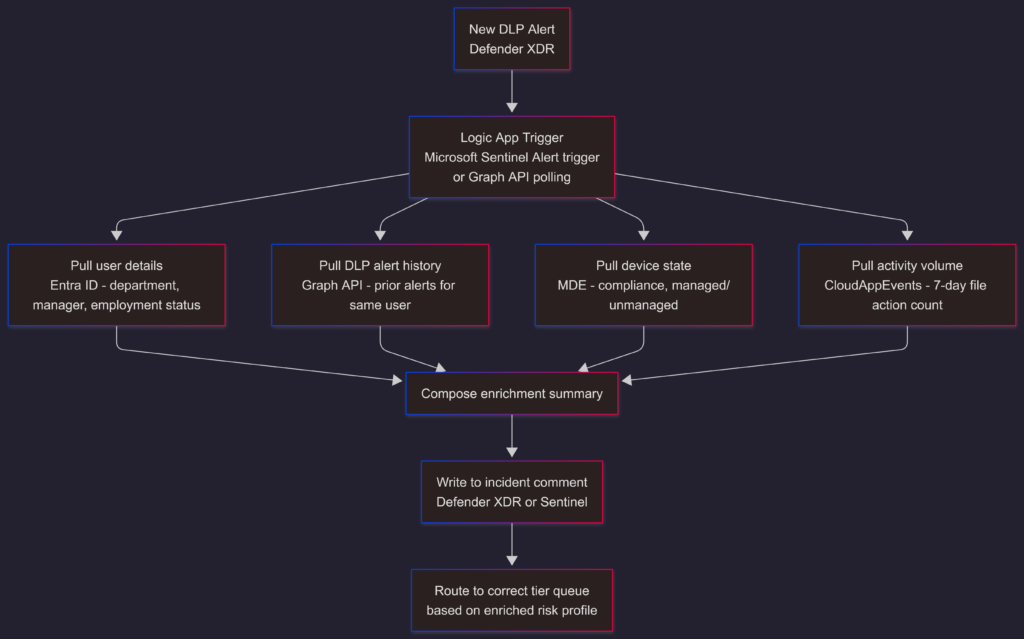
The Logic App connector for Defender XDR uses the Microsoft Security Graph connector to trigger on new alerts and write comments back via the PATCH incidents endpoint covered in Post 10.
A sample enrichment comment structure:
--- Auto-Enrichment (DLP Automation) ---
User: user.one@contoso.com
Department: Finance | Manager: Jane Smith
Employment status: Active
DLP alert history (90d): 2 prior alerts (both closed - false positive)
Device: corp-laptop-0042 | Compliance: Compliant | Managed: Yes
Network at trigger time: Corporate VPN
File action volume (7d): 14 file shares, 3 external
Risk signal: LOW - consistent pattern, managed device, known FP history
Recommended triage: Review and likely dismissAn analyst opening this incident already has the context that would otherwise take five to ten minutes to gather manually, applied consistently to every alert, not just the ones that happen to get a thorough Tier 1 review.
Pattern 2 – Alert suppression rules in Defender XDR
Defender XDR suppression rules allow specific alert patterns to be automatically resolved without appearing in the active queue. For recurring false positives with well-understood characteristics, this is significantly cleaner than manual dismissal.
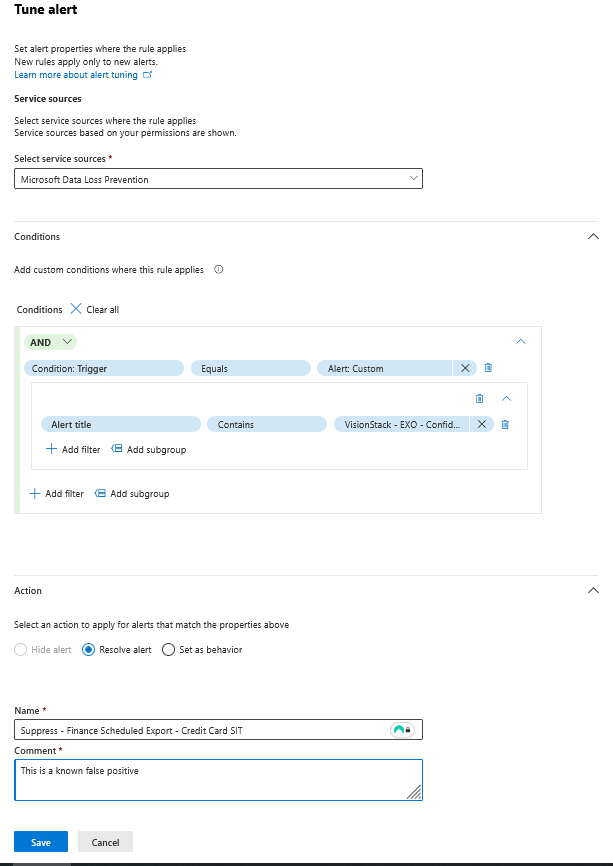
A suppression rule for a known finance export false positive pattern, configured via Defender XDR Alert Tuning (Settings – Microsoft Defender XDR – Alert tuning – Add new rule):
Service source:  Microsoft Data Loss Prevention
Condition:       Trigger = Alert: Custom
                 Alert title Contains "VisionStack - EXO - Confidential Data Exfiltration"
Action:          Resolve alert
Rule name:       Suppress - Finance Scheduled Export - Credit Card SIT
Comment: Known false positive - finance team scheduled export to approved external auditorOne thing worth stating clearly, the Alert Tuning UI condition set for DLP is limited to alert title matching. There is no UI option to additionally filter by policy name, user department, or recipient domain in the same rule. A title-based rule is therefore broader than ideal, it resolves every alert from that policy title, not just the specific finance-to-auditor pattern.
If the false positive pattern is consistent and well-understood, that trade-off is acceptable. If you need surgical suppression – match only when department is Finance AND destination is a specific approved domain – that requires a Logic App or the Defender XDR API to programmatically resolve alerts based on enriched criteria. That Logic App or direct API territory. The containment playbook in Pattern 4 shows how that HTTP action pattern works in practice.
Governance requirements for suppression rules:
Every suppression rule should have a named owner, a creation date, a review date (suggested: every 90 days), and documented justification. An un-reviewed suppression rule is a blind spot waiting to become a missed incident. Keep a suppression rule inventory – even a simple shared document – and treat it as part of DLP programme governance.
Pattern 3 – Defender Automated Investigation and Response (AIR)
Defender XDR’s Automated Investigation and Response (AIR) runs automatically whenever a DLP incident is triggered – there is no toggle to enable it. The global on/off switch was removed; AIR is permanently on by default.
What AIR does for DLP incidents:
- Correlates the DLP alert with related signals from other Defender workloads, identity risk from Entra ID Protection, endpoint anomalies from MDE, and other active incidents involving the same user
- Generates a structured investigation package that surfaces correlated evidence in one place, giving Tier 2 a starting point rather than a blank canvas
- Proposes remediation actions based on investigation findings, which a human then approves or rejects via the Action Center
What AIR does not do for DLP on Exchange or SharePoint:
The automation level per device group (Settings – Endpoints – Device groups – Remediation level) controls how aggressively AIR acts on endpoint threats, malware, suspicious processes, file quarantine on managed devices. It does not govern DLP containment actions on Exchange emails or SharePoint files. Those have their own approval gates in the Action Center.
In practice, AIR‘s value in a DLP context is investigation acceleration, not autonomous containment. All remediation actions – whether executed automatically or pending approval – are tracked in the Action Center. That is where Tier 3 reviews and approves proposed containment actions before they execute.
Pattern 4 – Sentinel playbooks for cross-platform response
Microsoft Sentinel playbooks are Logic Apps triggered by Sentinel analytics rules or incident creation. For DLP incident management, they extend automation into scenarios that Defender XDR’s native automation doesn’t cover – specifically cross-platform notifications, ITSM ticket creation, and conditional containment workflows.
Playbook: High-severity DLP alert – notify and route
Trigger: Sentinel analytics rule fires on High severity DLP alert
Actions:
  1. Get incident details via Sentinel connector
  2. Compose Teams notification to SOC-DLP channel
     - Include: alert title, user, policy, severity, link to incident
  3. Create ServiceNow ticket
     - Map: alert title → short description
     - Map: severity → priority (High → P2)
     - Map: user → affected user field
     - Map: incident URL → related links
  4. Assign Sentinel incident to Tier 2 queue
5. Add comment to Sentinel incident: "Routed to Tier 2 - ITSM ticket [ticket number] created"Playbook: Confirmed insider risk – approval-gated containment
This pattern is the most sensitive in the stack. It should only trigger when Tier 2 investigation has confirmed real risk and a containment action has been approved in the incident record.
Trigger: Incident tag "Approved-Containment" added by Tier 2 analyst
Actions:
  1. Get incident details and confirmed user identity
  2. Send approval request to Tier 3 lead via Teams Adaptive Card
     - Include: investigation summary, proposed action, requester identity
  3. Wait for approval (timeout: 4 hours)
  4a. If approved:
      - Call Entra ID connector: disable user sign-in (set accountEnabled = false)
      - HTTP action → Graph API: remove user's SharePoint sharing permissions
        DELETE https://graph.microsoft.com/v1.0/drives/{driveId}/items/{itemId}/permissions/{permId}
        Note: requires iterating over the user's active sharing permissions - no single "revoke all" endpoint
      - Add tag "Containment-Applied" to incident
      - Add comment with timestamp, approver identity, and actions taken
      - Close incident as True Positive
  4b. If rejected or timeout:
      - Add comment: "Containment request [approved/rejected/timed out] - manual review required"
- Assign back to Tier 2 for follow-upThe approval gate is not optional for account or access actions. It is what makes automated containment defensible.
Pattern 5 – KQL-based detection rules that feed automation
Automation is only as good as the detection logic that triggers it. A few KQL rules worth implementing in Sentinel that surface DLP-relevant risk patterns beyond the native alert:
Users with multiple DLP alerts in a rolling window:
SecurityAlert
| where ProviderName == "Microsoft Data Loss Prevention"
| where TimeGenerated > ago(30d)
| extend AlertUser = tostring(Entities[0].UserPrincipalName)
| where isnotempty(AlertUser)
| summarize AlertCount = count(), Severities = make_set(AlertSeverity) by AlertUser
| where AlertCount >= 3
| project AlertUser, AlertCount, Severities
| order by AlertCount descDLP alert followed by unusual sign-in within 60 minutes:
SecurityAlert
| where ProviderName == "Microsoft Data Loss Prevention"
| where TimeGenerated > ago(7d)
| extend AlertUser = tostring(Entities[0].UserPrincipalName)
| where isnotempty(AlertUser)
| join kind=inner (
    SigninLogs
    | where TimeGenerated > ago(7d)
    | where ResultType == 0
    | where RiskLevelDuringSignIn in ("medium", "high")
    | project SigninTime = TimeGenerated, UserPrincipalName, Location, IPAddress
) on $left.AlertUser == $right.UserPrincipalName
| where SigninTime > TimeGenerated
| where datetime_diff('minute', SigninTime, TimeGenerated) <= 60
| project AlertUser, AlertTime = TimeGenerated, SigninTime, Location, IPAddressHigh-volume file sharing in a short window:
OfficeActivity
| where TimeGenerated > ago(1d)
| where Operation == "SharingInvitationCreated"
| where OfficeWorkload in ("SharePoint", "OneDrive")
| summarize ShareCount = count() by UserId, bin(TimeGenerated, 15m)
| where ShareCount >= 10
| project UserId, TimeGenerated, ShareCount
| order by ShareCount descThese rules can be configured in Sentinel to automatically create incidents or trigger playbooks when the thresholds are met, giving you risk-based detection on top of the policy-based alert stream.
What automation cannot do
Automation handles the mechanical and the pattern-based. It cannot handle judgment.
The decision about whether a specific behaviour represents real organisational risk – given the business context, the user’s role, the data involved, and the regulatory environment – requires a human. Automation can assemble the inputs for that judgment faster and more consistently than manual processes. It cannot replace the judgment itself.
For DLP specifically, this boundary matters more than in most security domains. DLP incidents frequently involve ambiguous intent, legitimate business processes that look like policy violations, and sensitive personal situations that require careful handling. A containment action applied by an automation rule to the wrong person, based on pattern matching without context, has consequences that go well beyond a security misconfiguration. Build automation to accelerate human judgment. Not to replace it.
What’s coming next
Phase 4 has covered the tooling decision model, the integration patterns, and the automation layer. That closes the architecture and tooling section of the series.
Phase 5 starts with a question that the series hasn’t answered yet: how do you know the operating model is working? Before running real-world scenarios end-to-end, the next post establishes the measurement frame – separating the metrics that reflect programme health from the ones that just fill dashboards .
The views and opinions expressed in this post are solely the author’s own and do not reflect the views of their employer, clients, or any affiliated organisation. Nothing here is professional advice, and no content is based on confidential or client-specific information.
Leave A Comment
0 comments